CSP Evaluator
Paste a Content Security Policy, or enter a web address, to see its directives and weaknesses.
How this check works: our server sends one ordinary GET request per redirect step (at most 10) to the public address you enter, the same request a browser would make, and shows you a short summary — status codes, selected response headers and, for robots.txt, the file itself (up to 64 KB). It never sends data on your behalf, never contacts private or internal addresses, and does not log or store what you type; results are cached for 10 minutes and each visitor can run 10 checks per minute.
Recent
Your last 10 settings, saved only in this browser. Nothing is uploaded.
Get notified about new checks and updates
We send a short email only when we add a new tool or make a major change to one — no newsletter, no ads, never shared. To unsubscribe, email support@360jiance.com with the word “unsubscribe” and we delete your address. What we store.
This CSP evaluator reads a Content Security Policy and lists its weak points by severity. Paste a policy and it shows the directives it parsed, plus findings marked High, Medium, Low or Info, each with an explanation and a recommended fix.
Pasted text is evaluated in your browser only. There is no sign-up. If you want to check a live site, the tool can also fetch that site’s policy from a web address. Use it to test a policy before you deploy it. It is a web page, so there is nothing to install.
Every finding names the part of the specification or the guide it comes from.
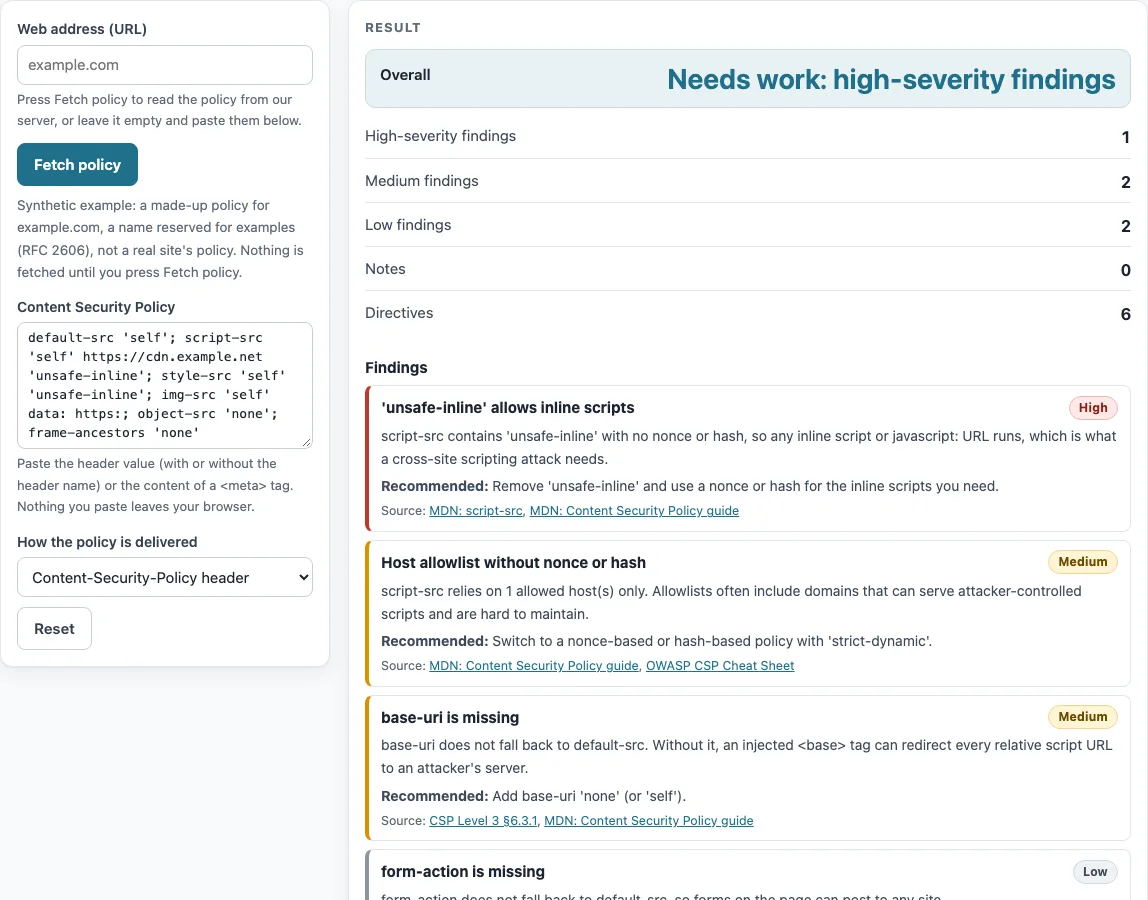
How to use the CSP evaluator
- Copy your policy into the “Content Security Policy” box. You can paste the header value with or without the header name, or the content of a meta tag.
- Choose how the policy is delivered in “How the policy is delivered”: “Content-Security-Policy header”, “Content-Security-Policy-Report-Only header” or “ tag”.
- Read “Overall” first. It shows “Needs work: high-severity findings”, “Reasonable: only medium or lower findings” or “No high or medium findings”.
- Check “High-severity findings”, then “Medium findings”. Each entry in “Findings” has a severity, an explanation, a “Recommended:” fix and a “Source:” link.
- Open “Parsed directives” to confirm the tool read each directive and its sources the way you intended.
- To check a live site, type its address into “Web address (URL)” and select “Fetch policy”.
The text in the box on load is a made-up policy for example.com, labelled as synthetic. Replace it with your own policy, and make sure the delivery option matches where your policy actually lives. The page has no presets, so pasting your own text is the only way to start.
Fix the high findings first, edit the policy in the box, and watch the findings update as you type. When the policy is ready, the CSP generator can rebuild it from a clean starting point with the sources you need.
How do I evaluate my CSP?
Paste the policy into the tool and read the High findings first, because the tool rates those as the most serious. Then work through Medium, Low and Info, and compare the “Parsed directives” table with what you meant the policy to do.
A policy is a list of directives separated by semicolons. Directive names are lower-cased, and if a directive appears twice, only the first one counts (CSP Level 3 §2.2.1). Keywords such as ‘self’, ’none’ and ‘unsafe-inline’ must be in single quotes (§2.3.1). An unquoted self is reported as a medium finding, because the browser will not read it as the keyword you meant.
Fallback matters too. Most fetch directives fall back to default-src when they are missing, and object-src does as well. base-uri, frame-ancestors and form-action do not (CSP3 §6.1, §6.3.1, §6.4.2). A policy with only default-src still lacks base-uri and frame-ancestors. If a policy has neither script-src nor default-src, the tool reports a high finding because scripts are not restricted at all.
MDN’s recommended strict policy uses a nonce in script-src, object-src ’none’ and base-uri ’none’. MDN also warns that allowlist policies often include unsafe domains, so a list of hosts is not a safe default.
Is ‘unsafe-inline’ bad?
Yes, when it appears in script-src without a nonce or hash, because it allows any inline script to run. The tool reports this as a high finding (script-unsafe-inline). In style-src it is a low finding, which is less serious but still weakens the policy.
Browsers ignore ‘unsafe-inline’ when the same directive also has a nonce or hash (MDN CSP guide). The finding is aimed at policies where that keyword is the only thing controlling inline scripts.
Why is my nonce flagged?
The nonce is flagged as nonce-short when it carries fewer than 128 bits, which the tool reports as a low finding. A nonce must be unique for every response, unguessable, and at least 128 bits before encoding (CSP3 §7.1).
The tool works out the length from the value you paste. The example nonce 4AEemGb0xJptoIGFP3Nd8w has 22 characters, which the tool counts as 132 bits, so it is not flagged for length. Short or fixed values trigger the finding. Generate a new nonce for each response on your server rather than copying one value into every page.
Sources (checked 13 October 2026): W3C · MDN
Worked examples
| Input | Result |
|---|---|
| default-src 'self' | 0 high, 2 medium, 2 low |
| script-src 'nonce-4AEemGb0xJptoIGFP3Nd8w'; object-src 'none'; base-uri 'none' | 0 high, 0 medium, 2 low |
| default-src *; script-src 'unsafe-inline' 'unsafe-eval' https: | 2 high, 4 medium, 2 low |
| default-src 'self'; frame-ancestors 'none'; report-uri /csp | 0 high, 4 medium, 1 low |
| default-src 'self'; script-src 'self' https://cdn.example.net 'unsafe-inline'; style-sr… | 1 high, 3 medium, 3 low |
Calculated by the tool above; open it with the same values to see each step.
Frequently asked questions
Does the tool upload my policy?
No. Pasted text is evaluated in the browser only, so the policy stays on your device for that check. Only “Fetch policy” sends anything: the web address you enter goes to our server, which reads the policy from it.
Can it fetch a site’s CSP?
Yes. Enter the address in “Web address (URL)” and select “Fetch policy”. The server reads the enforced header first and uses the report-only header if no enforced one is present. The API cuts values longer than 2048 characters, drops the last directive and notes this as a finding.
Does a clean result mean my site is safe?
No. “No high or medium findings” describes what the check saw at that moment. Whether your site is safe depends on how its pages are written, for example whether inline scripts use nonces correctly.
What does “Needs work: high-severity findings” mean?
It means the policy has at least one High finding. Open “High-severity findings” first and follow the “Recommended:” fix for each one.
Does report-only mode block anything?
No. A Content-Security-Policy-Report-Only header only reports violations; nothing is blocked until the same policy is sent as Content-Security-Policy. The evaluator notes report-only delivery as a finding for that reason.
Related tools
- Security headers checker: use it to see which other security headers a site sends alongside its policy.
- HSTS checker: use it to check whether a site sends a Strict-Transport-Security header.
- Cookie checker: use it to inspect the cookies a site sets and their attributes.
- SameSite cookie builder: use it to build a SameSite cookie value step by step.
- X-Frame-Options checker: use it to check the framing header, which overlaps with frame-ancestors in a policy.
- CSP generator: use it when you need a starting policy to edit and then test here.
- SSL checker: use it to check the HTTPS certificate of a site whose policy you are reviewing.