CSR Decoder
Paste a CSR to read its subject, SANs and key, and verify its signature, all in your browser.
Recent
Your last 10 settings, saved only in this browser. Nothing is uploaded.
Get notified about new checks and updates
We send a short email only when we add a new tool or make a major change to one — no newsletter, no ads, never shared. To unsubscribe, email support@360jiance.com with the word “unsubscribe” and we delete your address. What we store.
How to use the CSR decoder
- Click the “Certificate signing request (PEM)” field and paste the block that starts with
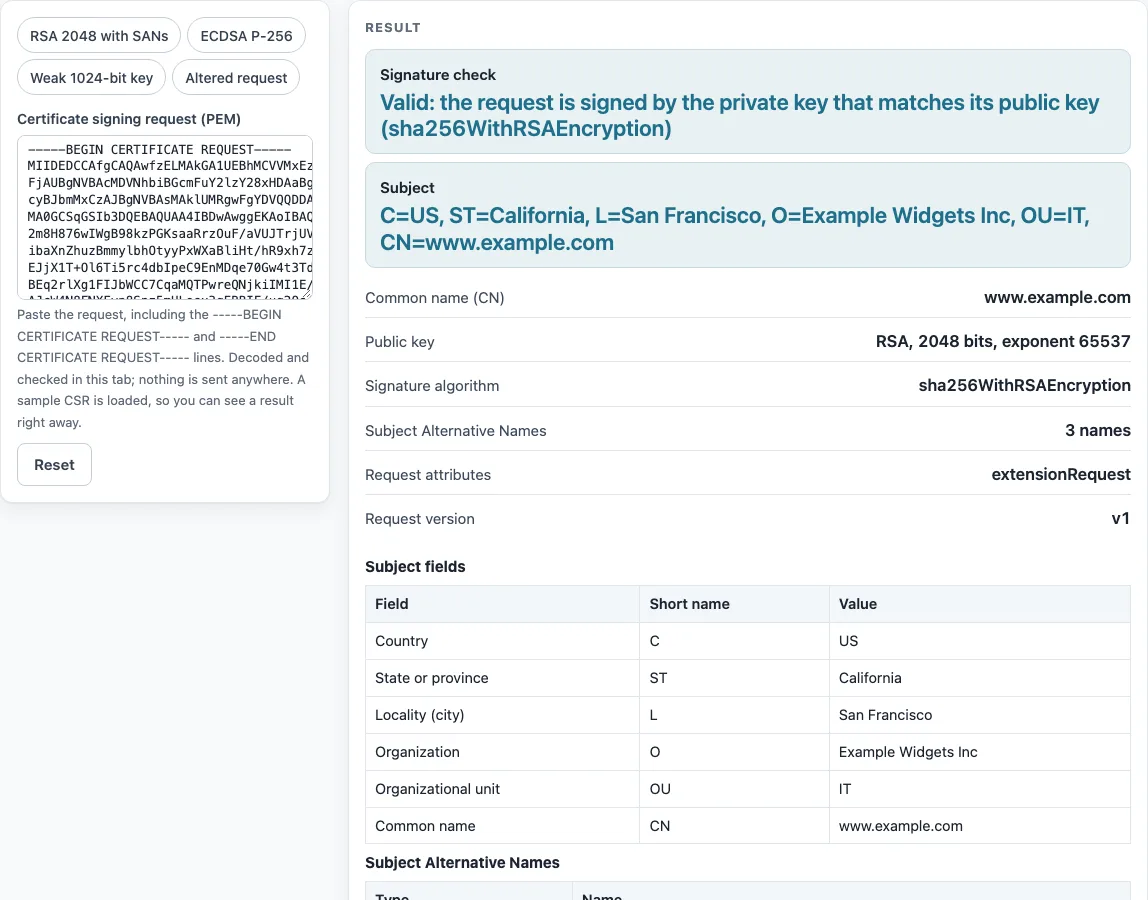
-----BEGIN CERTIFICATE REQUEST-----. The olderNEW CERTIFICATE REQUESTheadline and bare base64 also work. - Or choose a preset: “RSA 2048 with SANs”, “ECDSA P-256”, “Weak 1024-bit key” or “Altered request”. Each loads a sample so you can see what that kind of result looks like.
- Read “Signature check” first. “Valid” means the request is signed by the private key matching its public key. “Invalid” means the signature does not match the contents. “Not verified” means this tool does not check that algorithm.
- Check “Subject” and the Subject fields table for the organization and location details.
- Look at “Common name (CN)” and the “Subject Alternative Names” table. Every name you want on the certificate should appear in that table.
- Review “Public key” for type and size, and “Signature algorithm”.
- Read any warnings. Each one names the rule behind it, such as BR §6.1.5 or BR §7.1.2.7.12.
The sample CSR, made with openssl req, is loaded by default, so the page shows a working example before you paste anything. The output also lists “Requested key usage”, “Requested extended key usage”, “Requested basic constraints”, “Request attributes” and “Request version” when they are present in the request.
How do I decode a CSR?
A CSR is not encrypted, so there is nothing to decrypt. Decoding means reading its structure. The PEM text is base64 between a header line and a footer line. Removing the wrapper and decoding the base64 gives DER bytes, which hold a CertificationRequest with three parts: certificationRequestInfo, signatureAlgorithm and signature (RFC 2986 §4).
certificationRequestInfo contains the version, the subject, the public key (subjectPKInfo) and the attributes. The signature is made over the DER bytes of certificationRequestInfo using the private key that matches the public key in the request (RFC 2986 §4.2). Any change to the contents breaks that signature. Changing one letter of the organization after signing turns the check to “Invalid”, which is how a modified or truncated CSR is detected.
To decode a file offline, run openssl req -in file.csr -noout -text.
How do I check that my CSR has the right domain names?
Look at the “Common name (CN)” row and the “Subject Alternative Names” table. The SANs are requested in the extensionRequest attribute, OID 1.2.840.113549.1.9.14, which holds a set of extensions. The subjectAltName extension is one of them (RFC 2985 §5.4.2; RFC 5280 §4.2.1.6). Each domain name, IP address or email address you want on the certificate should appear in that table with the correct type.
Compare names exactly. A SAN of example.com does not list shop.example.com, so add each subdomain you need. The CN must also appear in the SAN list: under the Baseline Requirements, a CN, if present, must be taken from the SAN (BR §7.1.2.7.2 to §7.1.2.7.5). A publicly trusted server certificate needs at least one dNSName or iPAddress in the SAN (BR §7.1.2.7.12), so a request without SANs gets a warning. The tool shows what the request asks for. It cannot tell you whether a CA will issue the certificate.
Sources (checked 13 October 2026): RFC 2985 · RFC 2986 · RFC 5280 · CA/Browser Forum
Worked examples
| Input | Result |
|---|---|
| CSR with RSA 2048 key, signed with sha256WithRSAEncryption | Subject www.example.com, 3 names in the Subject Alternative Names |
| CSR with EC P-256 key, signed with ecdsa-with-SHA256 | Subject api.example.org, 3 names in the Subject Alternative Names |
| CSR with RSA 1024 key, signed with sha256WithRSAEncryption | Subject old.example.com, 0 names in the Subject Alternative Names |
| CSR with RSA 2048 key, signed with sha256WithRSAEncryption | Subject mismatch.example.com, 1 name in the Subject Alternative Names |
| CSR with RSA 2048 key, signed with sha256WithRSAEncryption | Subject www.example.com, 3 names in the Subject Alternative Names |
Calculated by the tool above; open it with the same values to see each step.
Frequently asked questions
Why does my CA say my key is too small?
Publicly trusted CAs follow the CA/Browser Forum Baseline Requirements v2.3.1 §6.1.5, which allows RSA keys of at least 2048 bits, with the modulus size divisible by 8. A 1024-bit key falls below that. Generate a new key of 2048 bits or more, then create a new CSR. The “Weak 1024-bit key” preset shows the warning.
Can I see the private key from a CSR?
No. A CSR contains only the public key, the subject and optional attributes. The private key stays with you, and this tool never sees it. If you paste a private key, the tool refuses it.
What does ‘signature valid’ mean?
It means the request was signed by the private key that matches the public key inside it, and its contents have not changed since signing. That shows you hold the key pair (RFC 2986 §3 and §4.2). It does not prove who you are. The CA validates your identity separately, and it decides whether to issue.
Is it safe to paste a CSR online?
A CSR holds only public information, and this tool decodes it in your browser without uploading it. Never paste a private key. The tool refuses one, but do not rely on that alone: keep private keys out of any web page.
Why does the tool say “Not verified”?
“Not verified” appears for signatures this tool does not check: RSA-PSS, SHA-1 or MD5 RSA, Ed25519, Ed448, and ECDSA on curves other than P-256, P-384 and P-521. The result reflects the tool’s limits, not a fault in your request. To check it offline, run openssl req -in file.csr -noout -text -verify, which prints “Certificate request self-signature verify OK” when the signature is valid.
Why does the tool refuse my input?
It refuses a private key, because a CSR never contains one. If you pasted a certificate instead, the tool points you to the SSL certificate decoder. Paste the block that starts with -----BEGIN CERTIFICATE REQUEST-----, or the older NEW CERTIFICATE REQUEST headline.
Related tools
- SSL certificate decoder: use it to read an issued certificate rather than a request.
- SSL checker: use it to check the certificate a live server presents.
- CAA record lookup: use it to see which CAs a domain allows to issue certificates.
- Domain expiration checker: use it to check when a domain’s registration expires before you renew certificates.