X Frame Options Checker
Enter a web address, or paste headers, to see whether other sites can show the page in a frame.
How this check works: our server sends one ordinary GET request per redirect step (at most 10) to the public address you enter, the same request a browser would make, and shows you a short summary — status codes, selected response headers and, for robots.txt, the file itself (up to 64 KB). It never sends data on your behalf, never contacts private or internal addresses, and does not log or store what you type; results are cached for 10 minutes and each visitor can run 10 checks per minute.
Recent
Your last 10 settings, saved only in this browser. Nothing is uploaded.
Get notified about new checks and updates
We send a short email only when we add a new tool or make a major change to one — no newsletter, no ads, never shared. To unsubscribe, email support@360jiance.com with the word “unsubscribe” and we delete your address. What we store.
How to use the X-Frame-Options checker
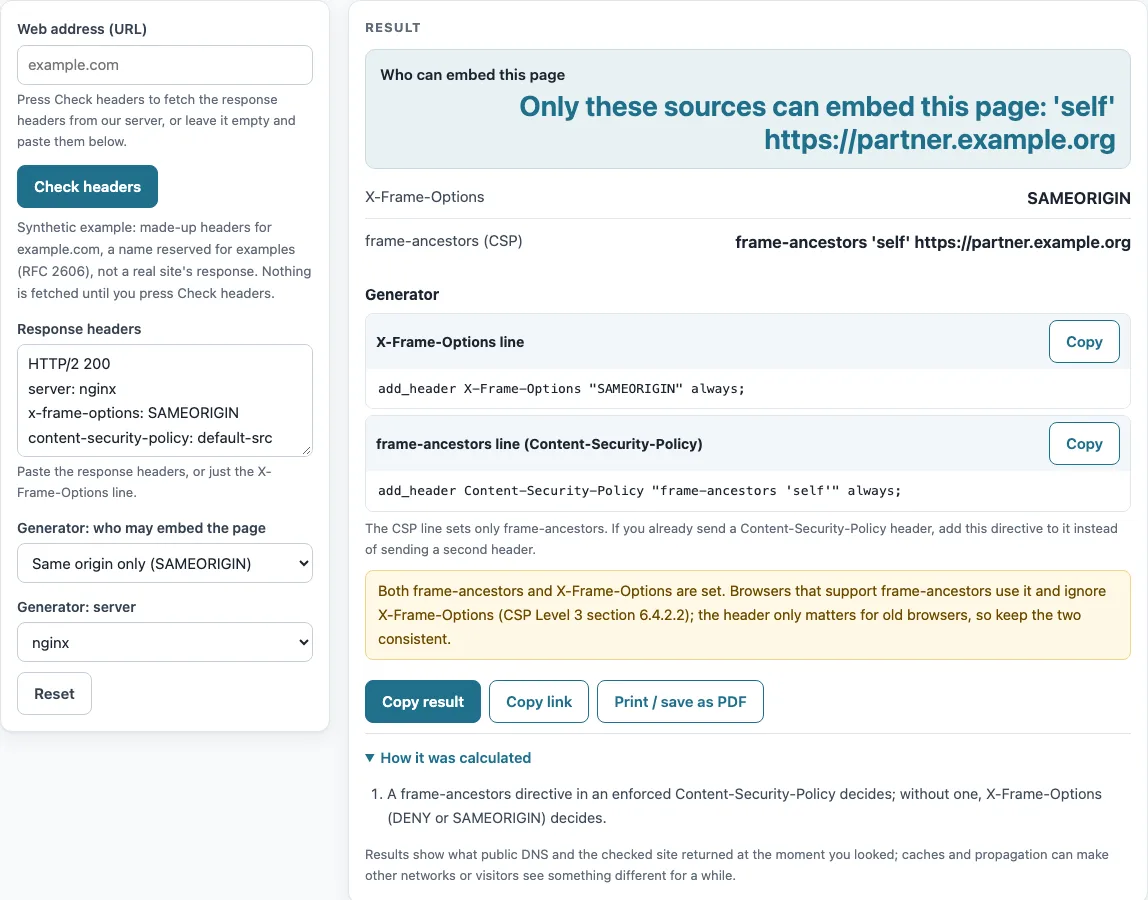
- To check a live site, type its address into “Web address (URL)” and select “Check headers”. To check headers you already have, paste them into “Response headers” instead.
- Read “Who can embed this page” first. It is the main result. Then look at the “X-Frame-Options” and “frame-ancestors (CSP)” outputs, and read any warnings.
- To change the setting, choose one option under “Generator: who may embed the page”: “Same origin only (SAMEORIGIN)”, “Nobody (DENY)”, or “Listed sites only (frame-ancestors)”.
- If you chose “Listed sites only (frame-ancestors)”, enter the allowed sites in “Allowed sites”. This option is the only one that can name specific sites.
- Select your server in “Generator: server”: Plain header line, nginx, Apache, IIS (web.config), Caddy, Node.js (Express), or Static host _headers file.
- Select “Copy” on the generated block and paste it into your server configuration.
The page loads with a made-up example for example.com, labelled as synthetic, so you can see the output format before you enter your own address.
After you change the header, run the check again on the live address to confirm the server sends it.
The generator shows the matching CSP frame-ancestors line next to the X-Frame-Options line.
What does X-Frame-Options DENY do?
DENY means no site, including yours, can show the page in a frame. A browser that reads DENY refuses to display the page inside an iframe, frame, or object. In the generator, “Nobody (DENY)” produces the matching CSP line, frame-ancestors ’none'.
Browsers apply these rules in a fixed order. An enforced frame-ancestors directive decides when it is present. If it is absent, X-Frame-Options DENY or SAMEORIGIN applies. An ALLOW-FROM value, or an invalid or repeated value, is not applied. With no header at all, anyone can embed the page. A report-only policy never blocks anything. RFC 7034 §2.1 requires exactly one X-Frame-Options value, so sending several headers or values breaks the setting.
X-Frame-Options SAMEORIGIN vs DENY?
SAMEORIGIN allows frames only from the same origin, meaning the same scheme, host, and port as the page. DENY allows no frames at all. Choose SAMEORIGIN when your own pages embed your own content in frames. Choose DENY when the page should never appear in a frame.
The CSP equivalents are frame-ancestors ‘self’ for SAMEORIGIN and frame-ancestors ’none’ for DENY. If both headers are sent, browsers that support frame-ancestors use it and ignore X-Frame-Options (CSP Level 3 §6.4.2.2). OWASP recommends X-Frame-Options: DENY and notes that frame-ancestors supersedes it. Both headers exist for clickjacking protection, which is an attack that hides a frame to trick a visitor into clicking something.
Frame protection matters most on pages where a click does something: sign-in forms, account settings, payment and admin pages.
Sources (checked 13 October 2026): RFC 7034 · MDN
Worked examples
| Input | Result |
|---|---|
| X-Frame-Options: DENY | Nobody (X-Frame-Options: DENY) |
| X-Frame-Options: SAMEORIGIN | Only pages on the same origin (X-Frame-Options: SAMEORIGIN) |
| X-Frame-Options: ALLOW-FROM https://example.org | Unprotected in current browsers: ALLOW-FROM is ignored |
| Content-Security-Policy: frame-ancestors 'self' https://partner.example + X-Frame-Options: SAMEORIGIN | Only these sources can embed this page: 'self' https://partner.example |
| Server: nginx | Anyone: no framing protection is set |
Calculated by the tool above; open it with the same values to see each step.
Frequently asked questions
Why is ALLOW-FROM not working?
ALLOW-FROM is obsolete, and current browsers ignore it, so it gives no framing protection. To allow specific sites, use frame-ancestors with those origins instead. Select “Listed sites only (frame-ancestors)” in the generator and enter the sites in “Allowed sites”.
How do I add X-Frame-Options in nginx, Apache, or IIS?
Use the generator and pick your server. For nginx the line is add_header X-Frame-Options "SAMEORIGIN" always;, and the always keyword also adds the header to error responses. For Apache it is Header always set X-Frame-Options "SAMEORIGIN". For IIS, add <add name="X-Frame-Options" value="SAMEORIGIN" /> inside customHeaders.
Why does my iframe say “refused to connect”?
The embedded site sent an X-Frame-Options or frame-ancestors setting that excludes your site. The error means the framed page sent that header, so the fix belongs on the framed site, not in your page. Only its owner can change the header.
Can I put these headers in a meta tag?
No. Browsers ignore frame-ancestors in a <meta> CSP tag (CSP Level 3 §3.3), and it does not fall back to default-src. Send the header from your server or hosting platform instead.
What if my hosting platform is not in the generator list?
The generator covers the servers listed above. Use the “Plain header line” output and add the header wherever your host lets you set response headers. Check the result afterward, because the checker only shows what it saw at that moment.
Related tools
- Security headers checker: Use it to review several security headers together, not just framing.
- HSTS checker: Use it to check whether your site sends a Strict-Transport-Security header.
- Cookie checker: Use it to inspect the cookies a site sets.
- SameSite cookie builder: Use it to build a SameSite cookie setting.
- CSP evaluator: Use it to review an existing Content-Security-Policy for weak rules.
- CSP generator: Use it to build a Content-Security-Policy from your choices.
- SSL checker: Use it to check a site’s HTTPS certificate.